

The RT-3 handles analog (FM and FM Narrow) and DMR programming. The RT-3 Radio Programming Software makes it easy for you to get all these channels programmed into your radio.
Programming Analog frequencies for repeaters or simplex activities is as simple in this radio as in any other, especially when using the RT Systems programmer. Set frequencies, tones and name just as you would for any radio. There is one extra step for this model. Zones.
DMR requirements include Contacts (for transmissions), Group Lists (for Receive), Memories (to put the Contact and Group with the frequency details), Zones (into which the memory channels are organized) and scan lists (for just that… scanning).
For Memories, Zones, Contacts, Group lists and Scan lists, the program uses a dynamic system to accommodate all those available to the radio. In some cases that is as many as 4000 memory channels, 100,000 contacts, and more groups that you could listen to in a lifetime!
The Programmer has built in sources not only for analog and DMR repeaters but now also for DMR Contacts. With a few clicks, you can have everyone registered in a new area into which you plan to travel.
Other settings of the radio are saved in the settings file. These include settings specific to:
- Display
- Common
- Menu
- Buttons
- Quick Messages
This radio requires more than just memory management. The Programmer handles everything you need to get on the air.
 The programming process begins by first installing the program and then connecting the radio for driver installation. In most DMR radios, the USB electronics are in the radio. The RT Systems programs work with these on-board electronics of the radio. Drivers are installed with the programmer.
Once the connection between the radio and computer is complete, start the programmer and complete Communications | Get data from radio. This “syncs” the radio to the computer. This must be done only once for a new installation of the programmer, but can be done in the future if ever you want to capture the current configuration of the radio.
Start setting up details for this radio (DMR and Analog) in the file you just used for the "Get data from radio" process or open a new file (File | New) and start with a fresh slate for programming. For Analog, just enter your information on the Memories tab. For DMR, begin with Contacts and Groups: you will need these in the memory channels. Save your file as you work. The makes all the information available to the other screens as you go forward.
Moving on to Memory channels, everything for a channel is easily found in the spreadsheet. When the frequency is entered, details for the channel are set to defaults automatically. Enter a name to clearly identify the channel. Enter Tones for Analog and complete DMR with Contact and Group details.
Now for the most important part of file creation!! The radio will not know the channel unless it is in a Zone. Select the Zone tab from the bottom of the screen to organize your channels into Zones. Use the existing zones or create as many as you want.
Save your file as you work. This is a computer, after all, and you would hate to lose your work should the system fail. Actually, create and save as many files as you want or need: you are not limited to one file. Remember, radio programming is an overwrite process. Everything in the radio is replaced by everything in the file. |
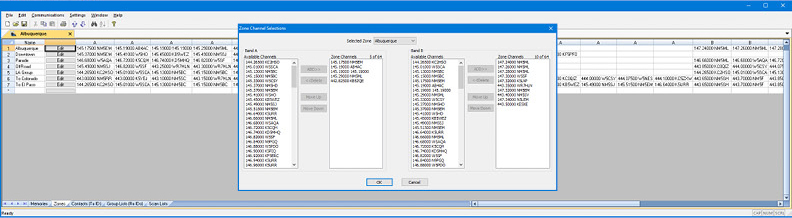 |
Zones (analog and DMR) Organize your memory channels into “groups” (known as zones in this radio) to get your best use as you turn through the list. You might want a zone for home, another for at your vacation home, another for the 3K fun run where you direct traffic. When a zone is selected, the radio knows only those channels. |
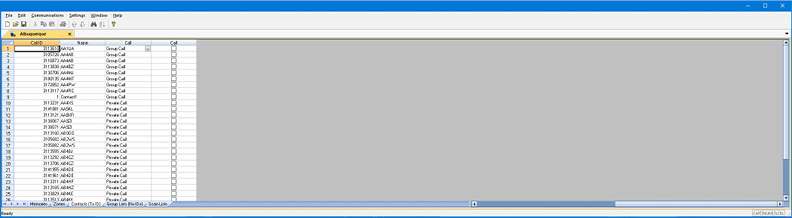 |
Contacts (DMR) A list of people or groups to whom you can talk. This list can be customized with the ID and name of folks you want identified when you talk to them. This list can include talk groups from repeater systems (DMR-Marc, Brandmeister, or TGIF) which can be found through Internet searches. |
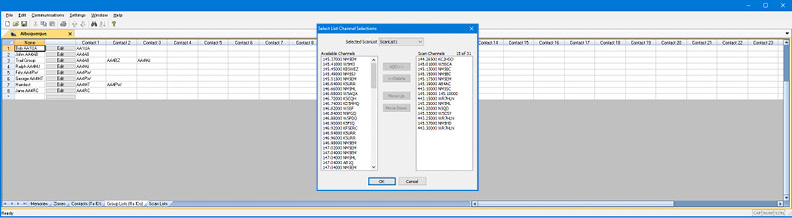 |
Group Lists Now that you have all those contacts, you don’t want to miss hearing all the conversations. The Contacts can be collected into Group Lists to give you the ability to listen for lots of conversations at once time. Enter a name for the group. Then click Edit to easily add up to 32 Contacts to this Group. |

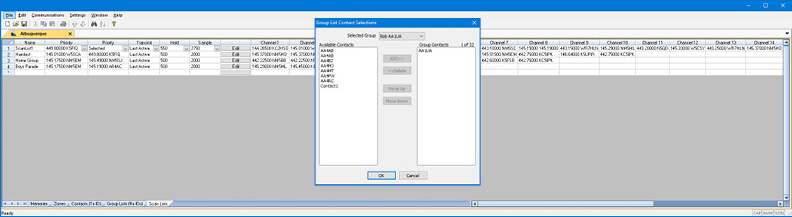 |
Scan Lists Set up groups of memory channels for scanning. The same channel can be added to several lists or can be omitted completely from scanning. Organize your channels to include only those you need for your current activity. |
Radio Menu Settings
Customize many set menu features of the radio. Check boxes toggle features on or off, drop down menus list all selections, and blank boxes for personalized entry add to the ease of setting up your radio exactly like you want it.
The entries on the Settings screens are made for you to "Set and Forget". Once settings are customized, you are prompted to save before exiting. The saved settings will be there every time you create a new frequency file.
 | Display Use these settings to control the radio’s display functions. | |
 | Common Customize other set menu features of the radio. Check boxes toggle features on or off, drop down menus list all selections and blank boxes for personalized entry add to the ease of setting up your radio exactly like you want it. | |
 | Menu Use this screen to choose menu options to display on your radio.> | |
 | Quick Messages Enter text to transmit with minimal button presses. Short phrases soch as "Low on gas" or HELP… STUCK" or "I'm hungary" can say it all if someone can't hear you. | |
